 DIGITALNAUTS
When you scan many barcodes or QR codes, it is useful to keep the results in a list. Product codes, tracking numbers, and equipment numbers can be troublesome to copy into notes one by one, and manual copying can lead to mistakes.
Using a barcode reader that can export scan history to CSV makes the results easier to handle in spreadsheets and other tools.
When CSV Export Helps
- You want to keep a list of product codes
- You want to save multiple delivery tracking numbers
- You want to organize equipment or inventory numbers
- You want to share scan results with someone else
CSV files can be opened by many spreadsheet apps and business tools, making scan results easier to organize.
How to Export CSV with Barcode Reader X
With the iPhone app Barcode Reader X, you can export barcode and QR code scan history to CSV.
The basic flow is simple.
- Scan a barcode or QR code
- Review the results on the history screen
- Open the share or export menu
- Choose CSV export
- Save or share the file
The history list lets you review multiple scan results in one place.
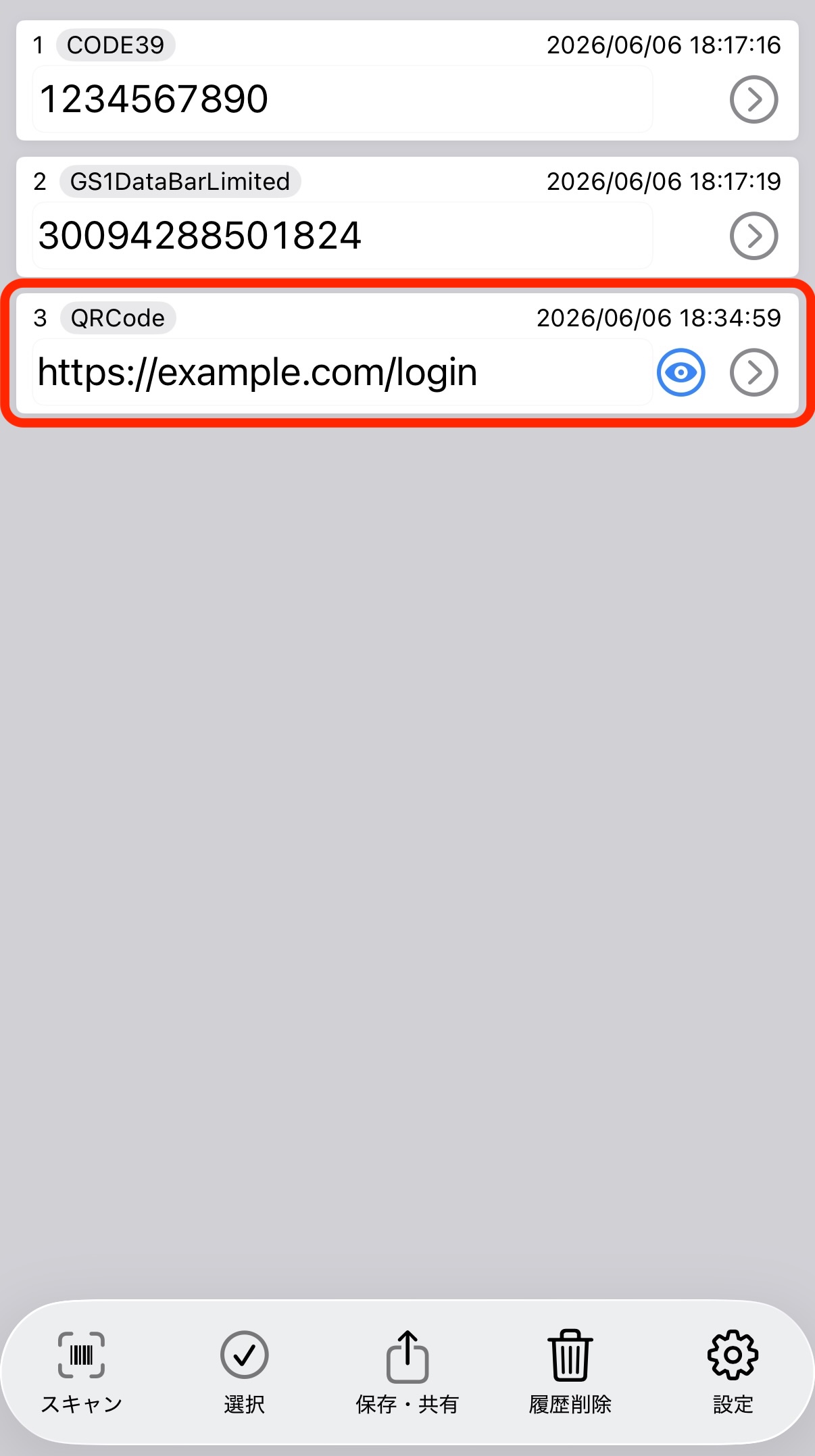 Scan history list
Check the Results Before Exporting
Before exporting to CSV, review the scan history. Check that unnecessary results are not included and that product codes or tracking numbers were scanned correctly.
On the detail screen, you can review each scan result before copying or sharing it.
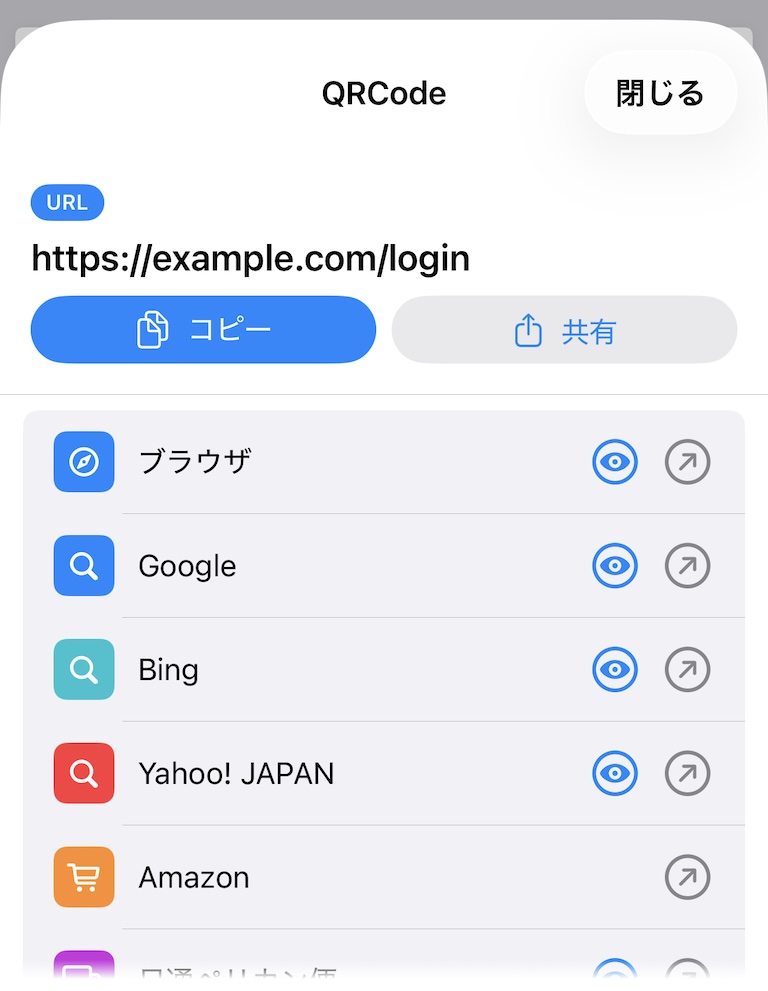 Scan result details
How to Use the CSV File
You can open the CSV file in a spreadsheet app, sort the rows, and add extra columns. Adding product names, staff names, dates, or notes can turn the scan results into a simple management sheet.
Keeping scan results as CSV makes them easier to search later and easier to use as a work record.
Learn more about Barcode Reader X
Related guides: