 DIGITALNAUTS
Barcode Scanner X is an iPhone and iPad app that uses the camera to read product barcodes, shipping label barcodes, QR codes, and more. You can save the results to a history, then copy, search, share, or export them to a file later. Because you can repeat scan-and-save one code after another, it also works for jobs like stocktaking and inspection where you read many barcodes in a row.
Who It’s For
- People who want to look up a product’s name or prices at other stores from its barcode
- People who need a list of scanned numbers for stocktaking or checking incoming and outgoing goods
- People who want to open a parcel tracking page without typing the tracking number
- People who want to build a list of their books by scanning ISBNs
- People who want to check where a QR code link goes before opening it
Main Features
Reads the Main 1D and 2D Codes
It reads 1D codes such as EAN-13, EAN-8, UPC, Code 128, ITF, Codabar, and GS1 DataBar, and 2D codes such as QR Code, Data Matrix, and PDF417. Turn on only the types you need under “Barcode formats to scan” in Settings to reduce misreads where one type is mistaken for another.
Saves Results to a History
The scanned content appears on screen, and tapping the blue round button at the bottom saves it to the history. If you don’t tap it, the result disappears after a few seconds and scanning resumes. You can change how long results stay on screen and how long to wait before the next scan in Settings.
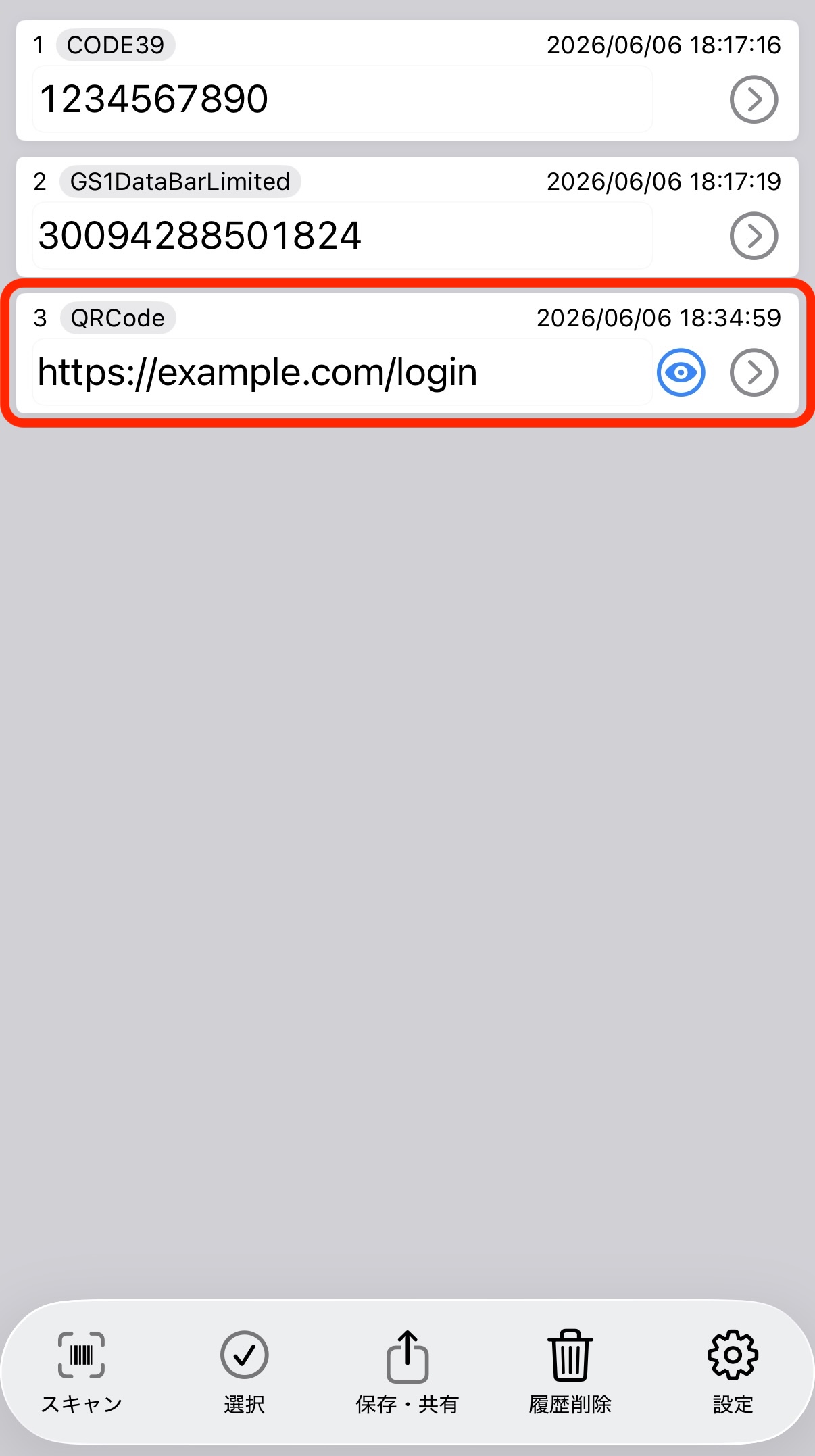 Scan history list
Looks Up Products and Parcels by Number
From the detail screen of a history item, you can pass the number to search or shopping services. For a shipping label number, you can open the carrier’s tracking page. Choose which services and carriers appear under “Customize Services” in the “External Services” section of Settings. If you often use a particular site, add its search URL as a “Custom URL”.
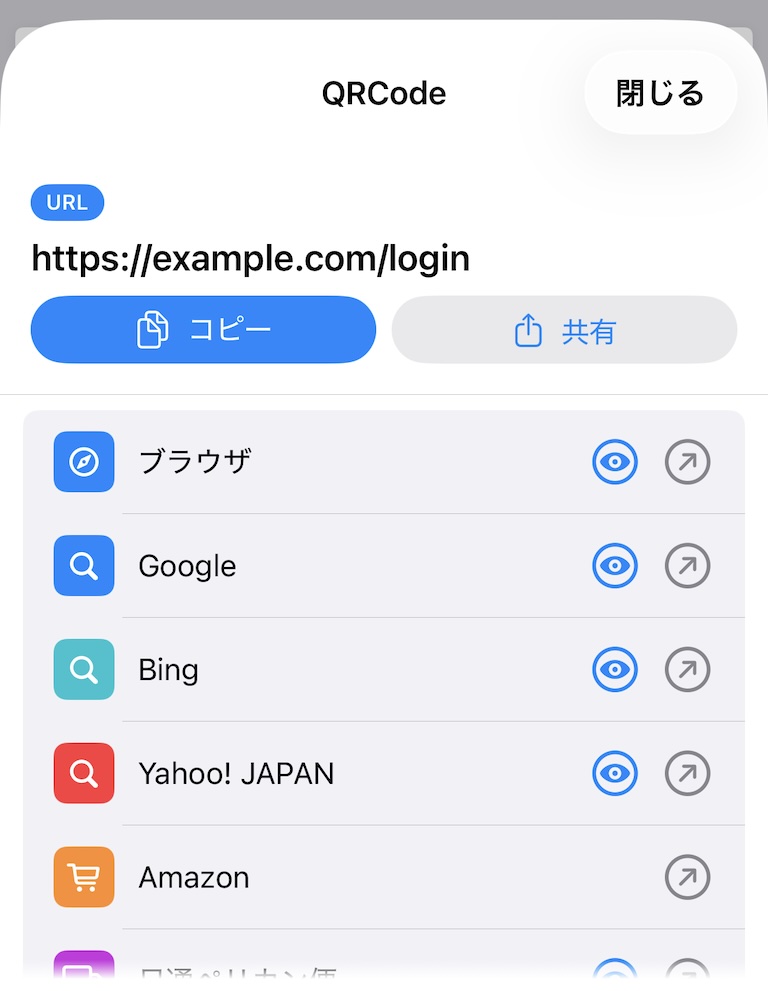 Scan result details
Copy, Share, and Export
Tap a result in the history to copy it, or share it to mail and other apps. The whole history can be exported as text, CSV, Excel (.xlsx), or PDF. CSV suits importing into spreadsheets or business tools, Excel suits editing and managing a table, and PDF suits printing or keeping a record.
Settings for the Way You Work
Turn on “Open camera on launch” to start scanning as soon as you open the app. You can also switch the sound and vibration on scan, so you can confirm each read without watching the screen, whether you are somewhere quiet or noisy.
How to Use It
- Open the app and point the camera at a barcode
- When the content appears, tap the blue round button to save it to the history
- Scan the next barcode
- Tap the stop button to stop scanning and show the history list
- Tap a result to copy it, or tap the “i” button to open the details and search or share
Swipe a row sideways to delete it.
Scanning Tips and Notes
- Hold the barcode horizontally. Vertical, curved, or tilted barcodes are harder to read
- Depending on lighting, size, and print quality, a code may not scan or may be misread. Compare the result with the printed digits when it matters
Download
Barcode Scanner X is available to download from the App Store.
Related guides: