 DIGITALNAUTS
You scan the same label twice and get a different digit count, or the code is reported as another format. Misreads like this are common with bar-style barcodes.
Formats That Get Confused
- Structurally close formats such as ITF and Interleaved 2 of 5
- Similar bar patterns such as Code 39 and Code 93
- A short code versus part of a longer one
With every format enabled, the app has many candidates to choose from. Turning off the ones you never use leaves fewer candidates and steadier results.
How to Narrow the Types in Barcode Reader X
- Open Settings
- Open the barcode types screen
- Tap “Deselect all”
- Turn on only the formats you use
The screen shows how many formats are selected. Nothing can be scanned while none are selected.
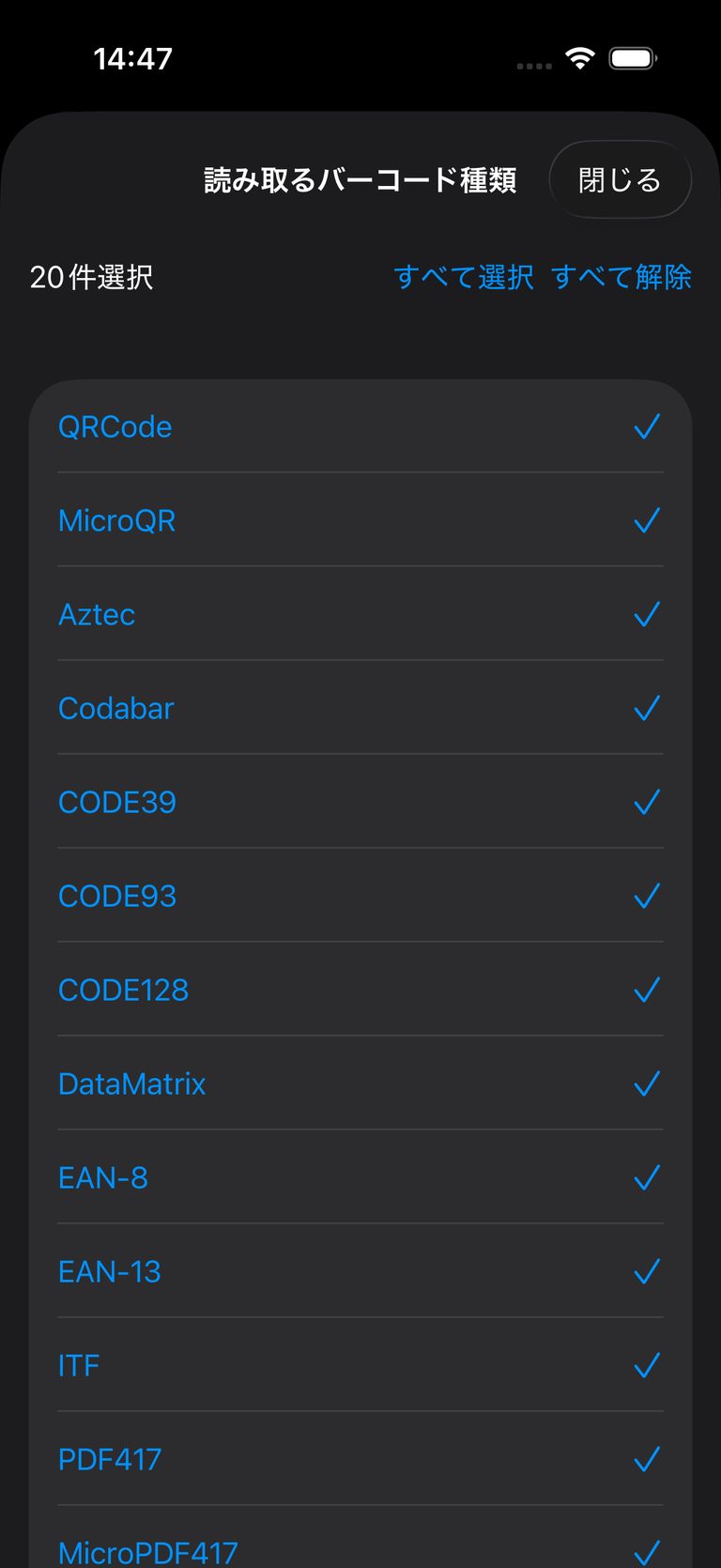 Selecting barcode types to detect
Suggested Settings by Use
| Use | Formats to enable |
|---|---|
| Retail product checks | EAN-13, EAN-8, UPC-A, UPC-E |
| Book management | EAN-13 |
| Logistics labels | Code 128, ITF, GS1 DataBar family |
| QR codes only | QR Code |
Confirm the Format in the Result
The scan result details show the detected format, so you can confirm a code was not read as something unexpected.
Notes
- GS1-128 is recognized as Code 128
- Narrowing the list reduces misreads but does not eliminate them. Verify important numbers by eye
Learn more about Barcode Reader X
Related guides: