 DIGITALNAUTS
Text and images you copy on your phone may remain on the clipboard after you have finished using them. That includes a password you copied to sign in, or an address you copied to send to someone. If you paste in another app without thinking, it can end up with the wrong person. Erase Copy shows what is on your clipboard right now and clears it with one tap. It is available for iPhone, iPad, and Android.
Who It’s For
- People who often copy and paste passwords or verification codes
- People who copy work information and then use a personal messaging app
- People who want to check what is on the clipboard before pasting
- People who want to get into the habit of clearing what they copy
Main Features
Shows What’s on the Clipboard
When you open the app, the text or image on the clipboard appears on screen. If there is nothing, it shows “Clipboard is empty.”
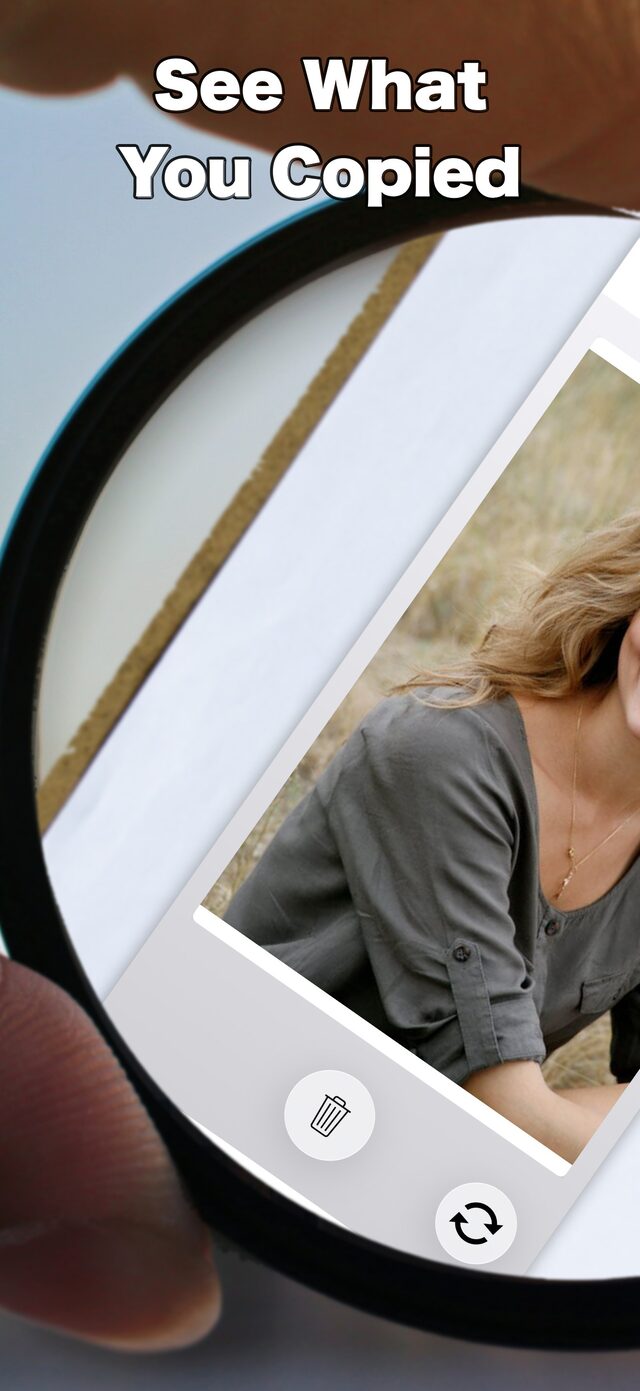 An image on the clipboard
Clears It With One Tap
Tap the trash button to clear the clipboard. You can check when you last cleared it in Settings.
Warns About Personal Information
If the text on the clipboard contains something that looks like an email address, phone number, or card number, the app shows “Contains personal info. We recommend clearing” along with the type it found. The Android version also detects URLs.
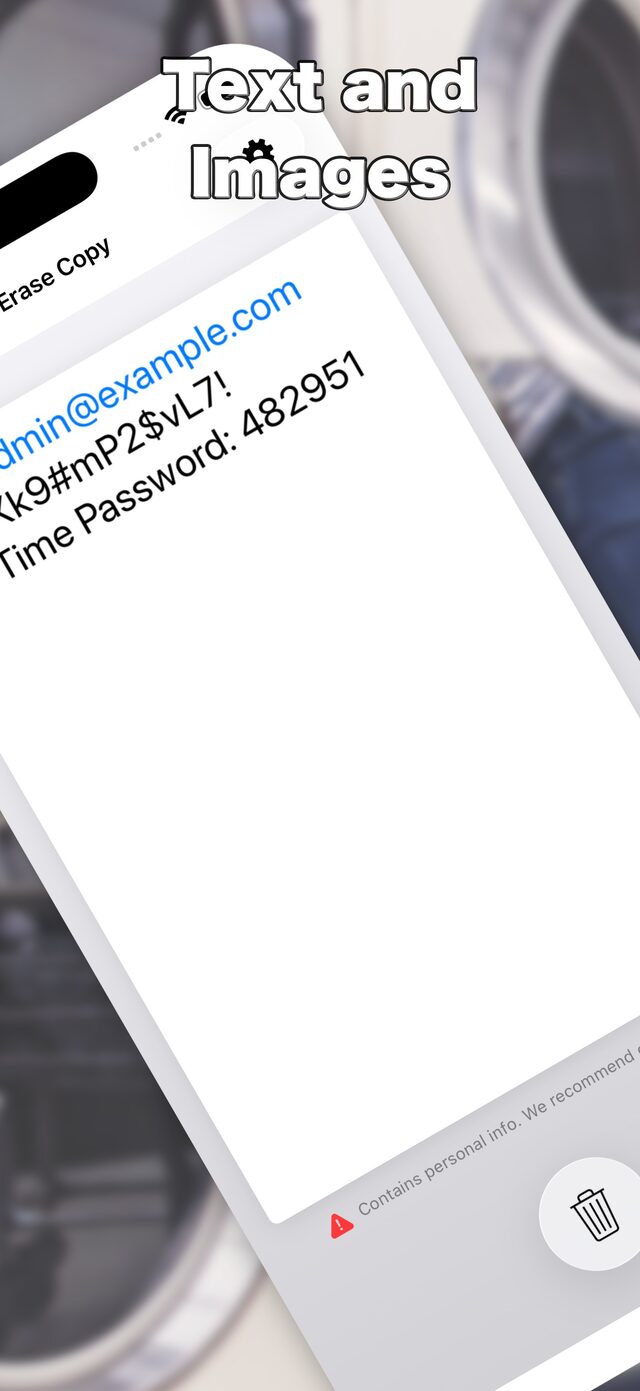 A personal information warning
Detects Changes While the App Is Open
While the app is open, it detects changes to the clipboard.
Reminders So You Don’t Forget
With “Reminder”, the app can send notifications reminding you to clear the clipboard. You can choose an interval from 5 minutes to 24 hours and whether to repeat. On Android, the shortest interval is 15 minutes.
How to Use It
- Open the app to show what is on the clipboard
- On iPhone, if a paste confirmation appears, allow pasting
- Check the content and any personal information warning
- If you don’t need it, tap the trash button to clear it
- If you like, choose a “Reminder” interval in Settings
For example, after copying a password from your notes to sign in, open Erase Copy, confirm the password is shown, and clear it with the trash button. Do the same after pasting your address into a chat. If you often forget, set “Reminder” to 30 minutes or 1 hour so the notification prompts you to check.
On iPhone, a dialog asking about pasting from other apps appears each time. In the iPhone Settings app, set “Paste from Other Apps” for Erase Copy to allow, and the dialog no longer appears.
Good to Know
- Showing the content and detecting changes happen while the app is open. The app does not clear the clipboard automatically while it is closed
- The personal information warning is based on the shape of the text. Passwords and other information without a fixed pattern are not detected
- After clearing, you can no longer paste what you had copied
Download
Erase Copy is available to download from the App Store and Google Play.