 DIGITALNAUTS
Tracking numbers are long, and typing them by hand invites mistakes. Scanning the barcode on the label passes the number straight to the carrier’s tracking page.
When This Helps
- You type the same tracking number over and over
- You are following several packages at once
- You want to look up which package was which later
How to Scan a Tracking Number with Barcode Reader X
With the iPhone app Barcode Reader X, scanned numbers are stored in your history and can be opened on a carrier tracking page.
- Scan the barcode on the shipping label
- Tap the blue circle button to save the result to history
- Tap the info button in the list to open the details
- Choose a carrier to open its tracking page
Choose the Carriers You Use
The carriers shown on the detail screen can be changed in Settings.
- Open Settings
- Open “Customize services” under external services
- Turn on the carriers you use under Carriers
By default, carriers are selected to match your region and language. You can always go back with “Reset to regional defaults.”
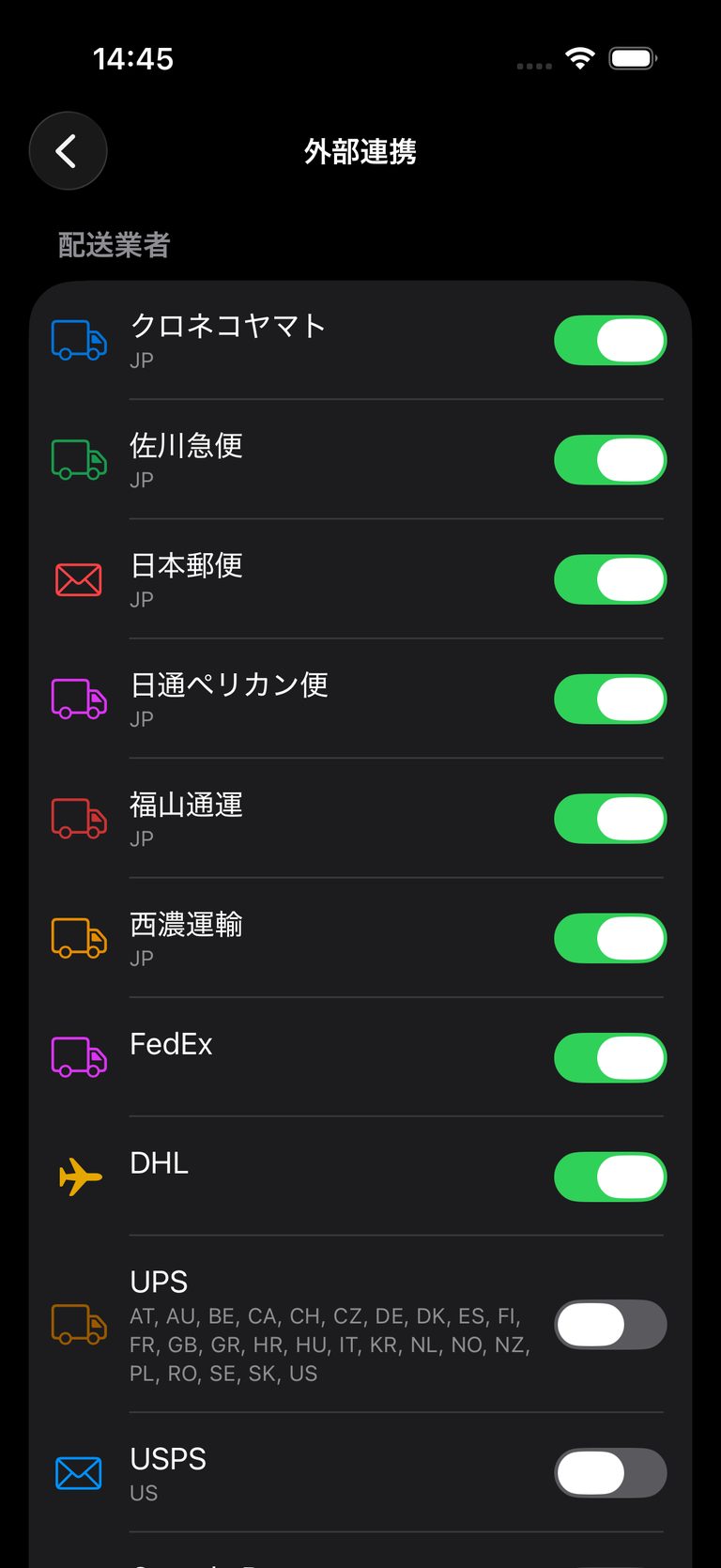 Carrier settings
Keeping the Numbers in History
Because scans stay in your history, you can reopen the same number as often as you need while you wait for a delivery. If you have many, export the list as CSV or Excel.
Notes
- A label barcode may contain information other than the tracking number
- Always confirm delivery status on the carrier’s own page
- Be careful with real tracking numbers when sharing or taking screenshots
Learn more about Barcode Reader X
Related guides: