 DIGITALNAUTS
Calculator C is a calculator app that keeps the formulas you enter and their results on screen as a history. Below the history, it can show the total, tax, average, and more, calculated automatically. You can look back at earlier calculations and export the results to a file, so it suits situations where you handle several calculations together, such as shopping totals, estimates, or expenses. It is available for iPhone, iPad, and Android.
Who It’s For
- People who lose track of what they have already added on a regular calculator
- People who need the total or the amount with tax for several prices when shopping or preparing estimates
- People who want to move their results into a spreadsheet or notes
- People who often use a large phone with one hand
Main Features
Formulas and History Stay on Screen
Formulas, including parentheses and square roots, appear in the history as you entered them. Tap a result in the history to use that number in your next calculation. Swipe a row to the left to edit or delete it.
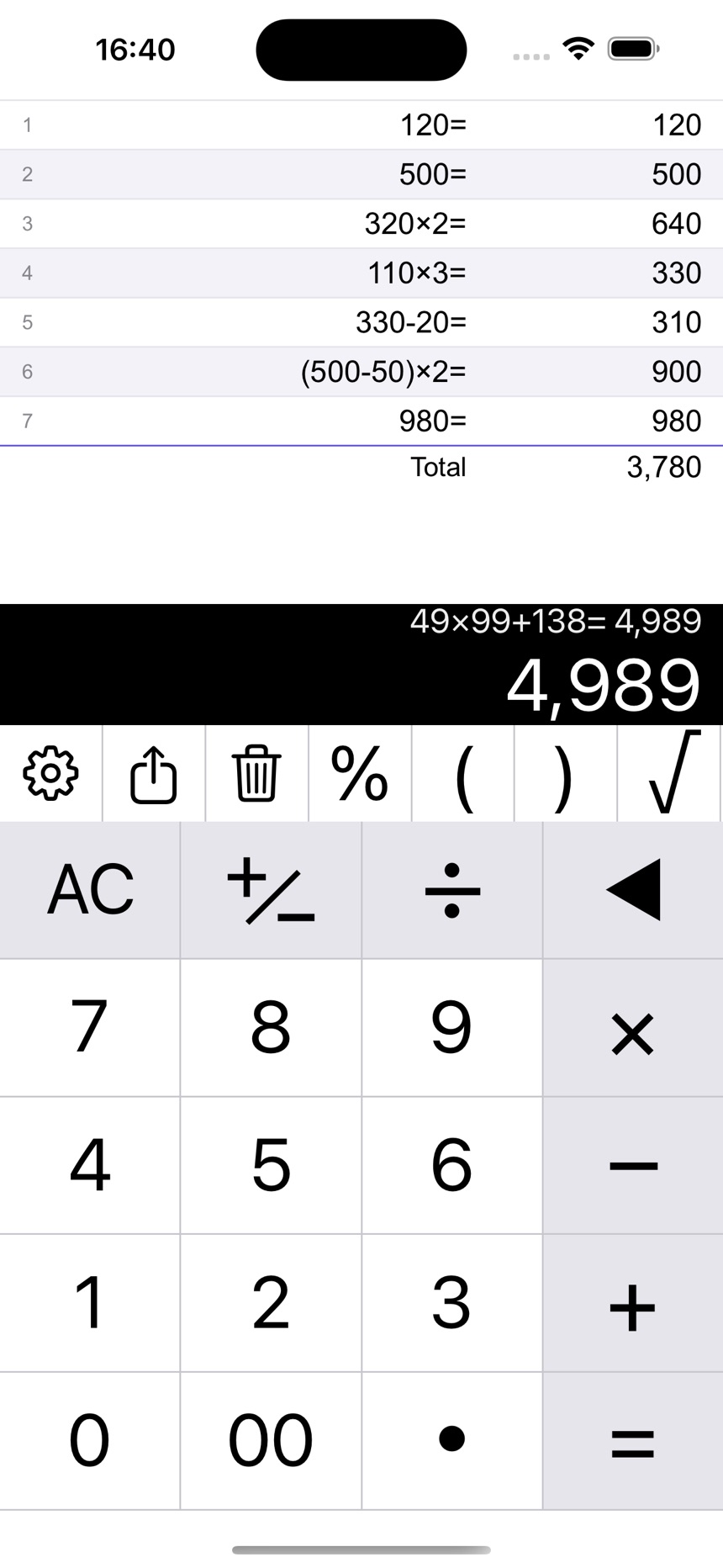 Formulas and results stay in the history, with the total below
Automatic Total and Tax
Under “Total Display” in Settings, choose what appears below the history. “Sum” shows the total of the history. “Excl. Tax” shows the subtotal, tax, and total. “Incl. Tax” shows the total, the tax it includes, and the amount before tax. You can change the tax rate in Settings. When you edit or delete a row, the total is recalculated.
Average, Maximum, Minimum, and Count
The items you turn on under “Statistics” appear together with the total. You can also choose the number of decimal places and the rounding method: round down, round up, or round to nearest.
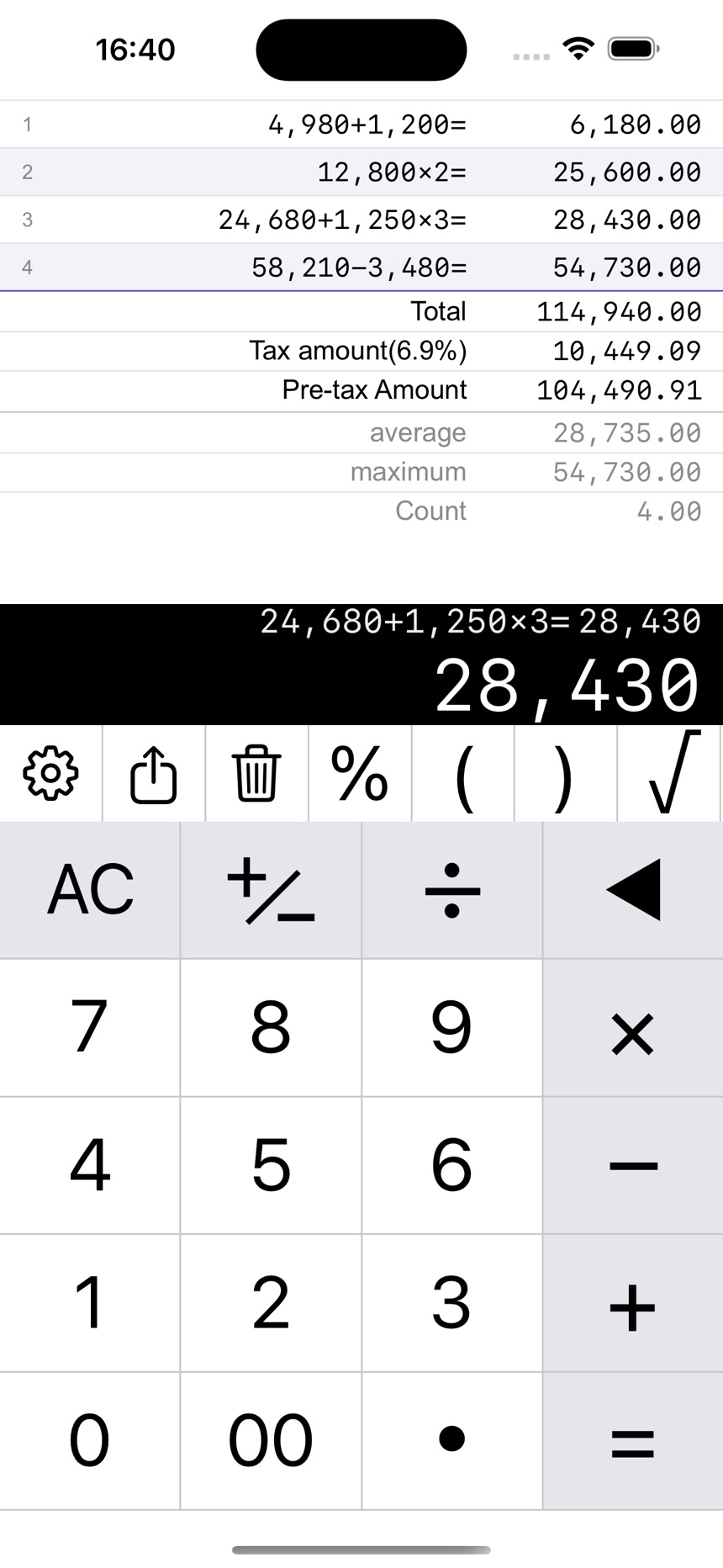 Total, average, maximum, and count shown together
Export Your Results
From “Share” in the toolbar, you can export the history as plain text, CSV, Excel (.xlsx), Markdown, JSON, or PDF. Choose CSV or Excel to continue working in a spreadsheet, or PDF to hand it to someone as is.
Button Layout for One Hand and Custom Looks
With “Adjust position” under “Button pad”, you can move the whole button area up, down, left, or right and change its height. If you use your right hand, moving the buttons to the right puts them within reach of your thumb. There is also a layout that mirrors the numbers and operators. You can choose from 3 button styles and 12 color schemes, and change the text size. Turn on “Align decimal places” to line up decimal points vertically.
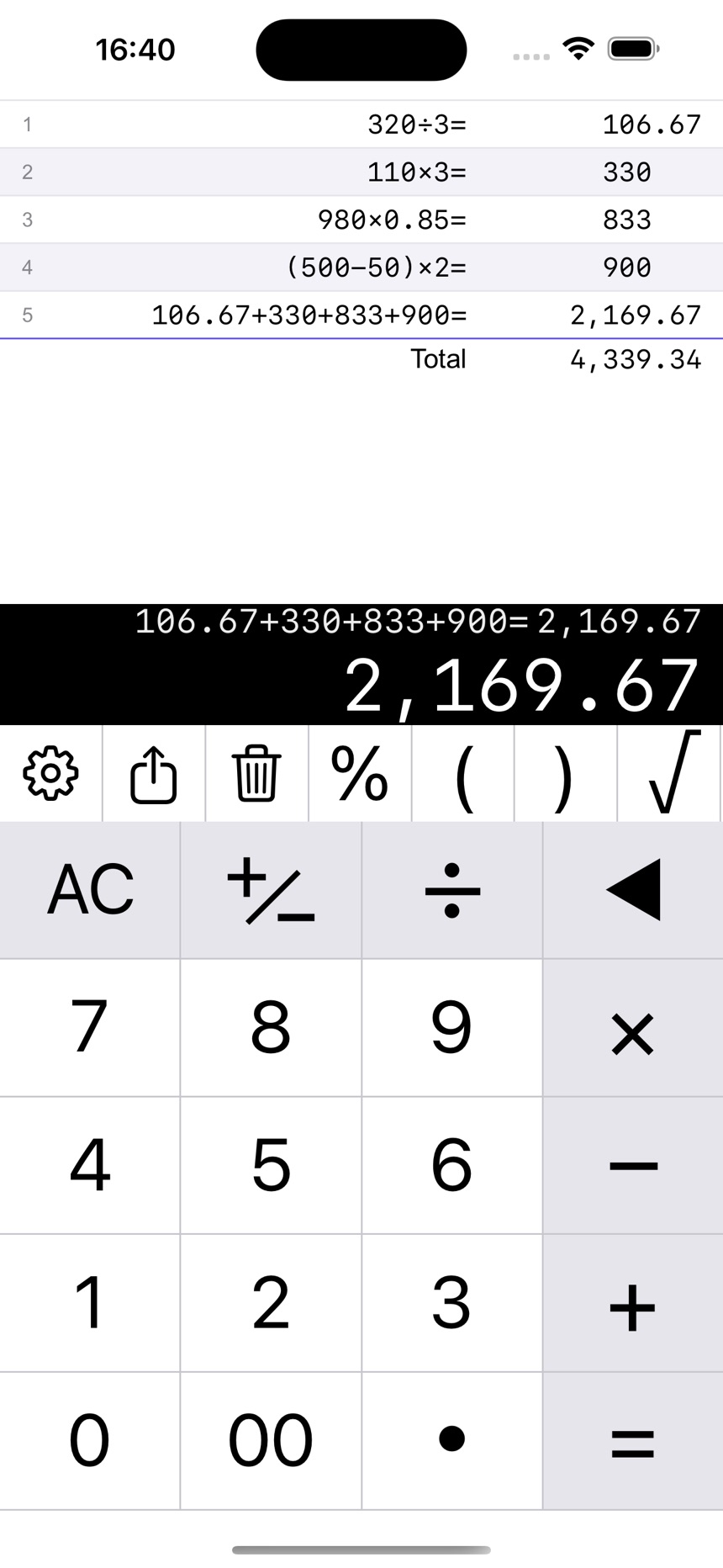 Buttons moved to the right
How to Use It
- Enter a formula and calculate
- The formula and result stay in the history
- Tap the gear button in the toolbar to open Settings, and choose options under “Total Display” and “Statistics”
- If needed, use “Adjust position” under “Button pad” or the theme settings to make the buttons easier to reach and read
- Tap “Share” in the toolbar, choose a format, and export the history
For example, when you pick items priced 12.80, 9.80, and 4.50 while shopping, calculate each price so it stays in the history. With “Total Display” set to “Sum”, 27.10 appears below the history. With “Excl. Tax”, the tax and the total with tax appear as well. If you decide not to buy one item, swipe that row to the left and delete it, and the total is recalculated.
Clearing the history changes the total and statistics.
Download
Calculator C is available to download from the App Store and Google Play.
Related guides: