 DIGITALNAUTS
When you design a flyer, slides, a web page, or an app screen, some text and background color combinations make text hard to read. Color vision also differs from person to person, so a combination you can read may be hard for someone else to tell apart. Color Suggest is an iPhone and iPad app that suggests readable color schemes and lets you check their contrast ratio and appearance under different color vision, both as numbers and on screen. It also includes a color picker for looking up color values and color samples that list the standard iOS colors.
Who It’s For
- People who want readable text and background colors for documents or web pages
- People who want to check whether a color scheme is easy to tell apart for people who see color differently
- People who want to look up HEX or RGB values and copy them
- People building iPhone apps who want to check the values of standard iOS colors
Main Features
Generates Readable Color Schemes
Open “Palette Generator” and combinations of text and background colors appear. The center button in the bottom menu swaps in different combinations. Each one shows its contrast ratio and whether it meets WCAG, the international standard for web accessibility, at AA (4.5:1 or higher) or AAA (7:1 or higher). You can also sort them from most to least readable or the reverse.
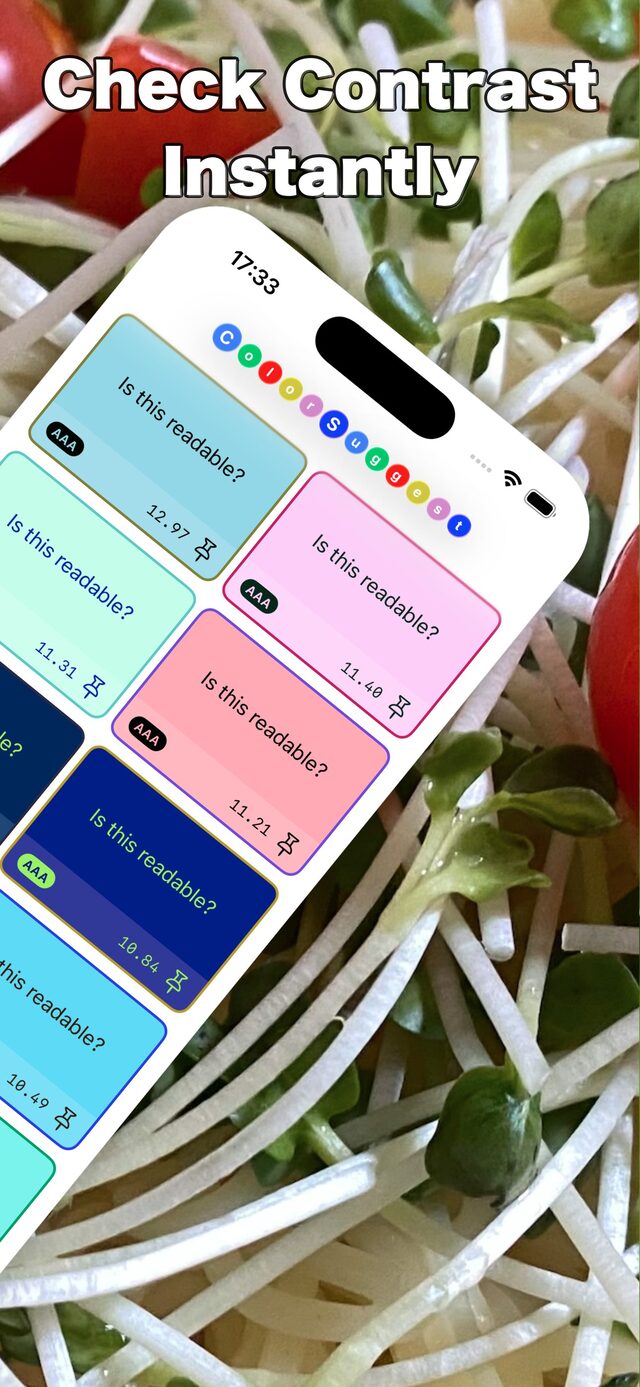 Each scheme shows its contrast ratio and result
Builds Schemes Around the Color You Want
Tap the palette button in the bottom menu to open “Specify Colors”, enter a background color, and tap “Generate” to build combinations that suit it. Turn on “Also specify text color” to fix the text color as well. You can enter colors by name, HEX, or RGB, or choose from basic colors. You can also change the font size and bold, so you can check readability at the text size you will actually use.
Color Vision Simulation
“Color Vision Simulation” switches the view to protan, deutan, and tritan types (each in strong and mild forms), achromatopsia, achromatomaly, and grayscale. Use it to check for combinations, such as red and green, that some people find hard to tell apart.
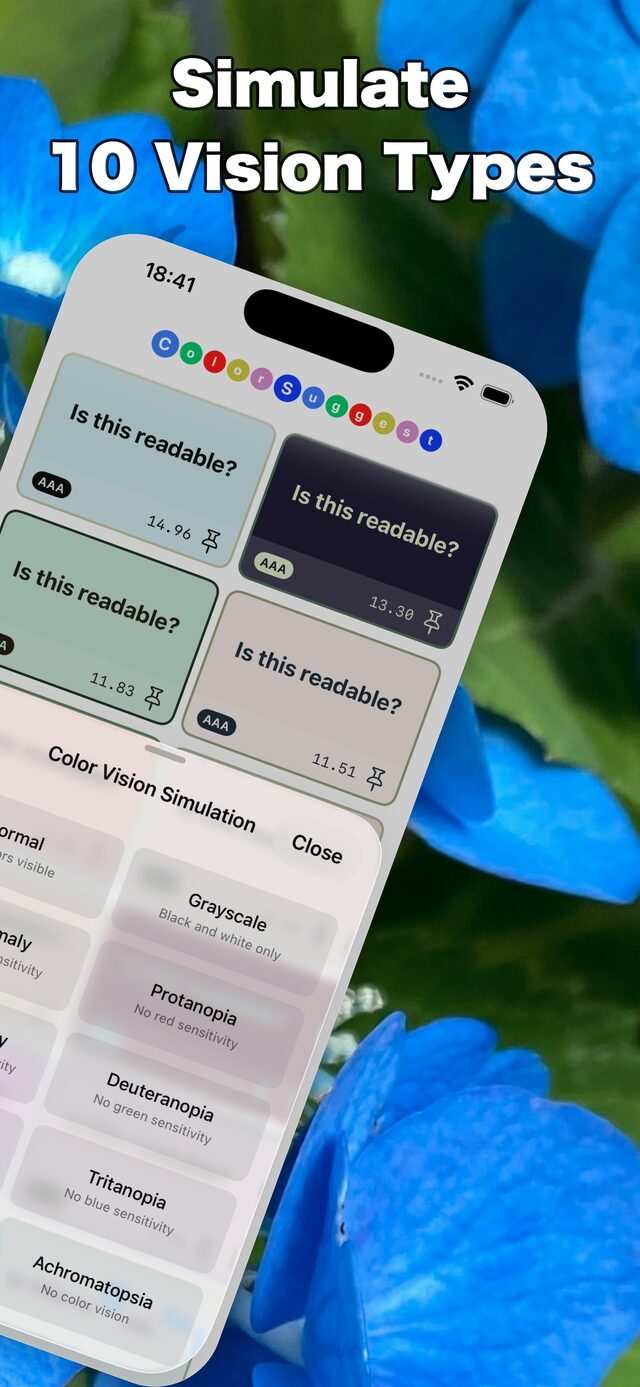 Choose a type to switch the view
Look Up and Adjust Colors With the Color Picker
“Color Picker” shows the HEX, RGB, HSL, and HSV values of the selected color, and changing one updates the others. Adjust a color step by step with “Lighter”, “Darker”, “Vivid”, “Softer”, “Warmer”, and “Cooler”, or pick from suggestions such as complementary and analogous colors. You can also trace over an image from your photo library to pick the color at that point. Tap a value to copy it. The CSS notation is shown as well.
Save and Export Color Schemes
Pin the color schemes you like. With “Export Palette”, you can export and share them as text, CSS variables, or JSON.
List the Standard iOS Colors
“Color Samples” lists the standard and system colors in iOS with their names in code and their values in light and dark mode, which you can copy.
How to Use It
- Open the app and choose “Palette Generator” from the menu
- Compare the color schemes and their contrast ratios
- To set a background color, enter it in “Specify Colors” and tap “Generate”
- Tap the eye button to open “Color Vision Simulation” and check that the scheme is still readable
- Pin the scheme you want to use, then choose a format in “Export Palette” and share it
To look up only a color value, choose “Color Picker” from the menu.
Download
Color Suggest is available to download from the App Store.