 DIGITALNAUTS
Opening a URL from a QR code without checking it first can be risky if the link is unsafe. It may send you to a fake site or a page that asks for personal information.
Cases to Watch For
- You scan a free Wi-Fi QR code at a cafe, station, or event, and it sends you to a suspicious site
- You scan a QR code on a delivery notice or mailer, and it asks for personal information
As a simple precaution, check the QR code URL before you open it.
What to Check
- Is it a website you know?
- Does the company or service name look correct?
- Are any letters slightly different?
- Is it a suspicious shortened URL?
How to Check with Barcode Reader X
With the iPhone app Barcode Reader X, you can check a scanned URL before opening it.
The scan flow is simple.
- Scan the QR code
- Review the URL shown on the screen
- Do not open it if the URL looks unusual
- Open the detail screen to copy or share it if needed
The URL is shown in the scan result, so you can review it before opening.
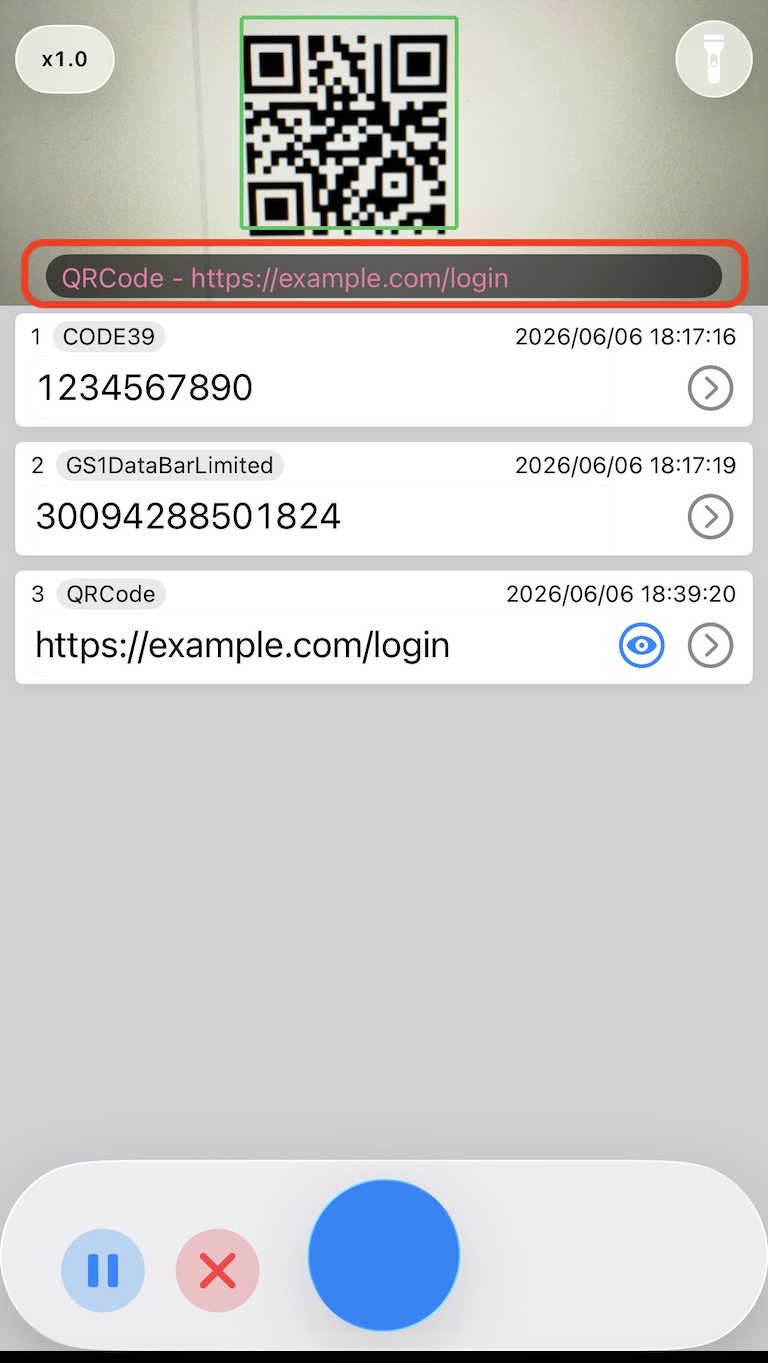 QR code scan result
On the detail screen, you can review the URL and then choose copy or share.
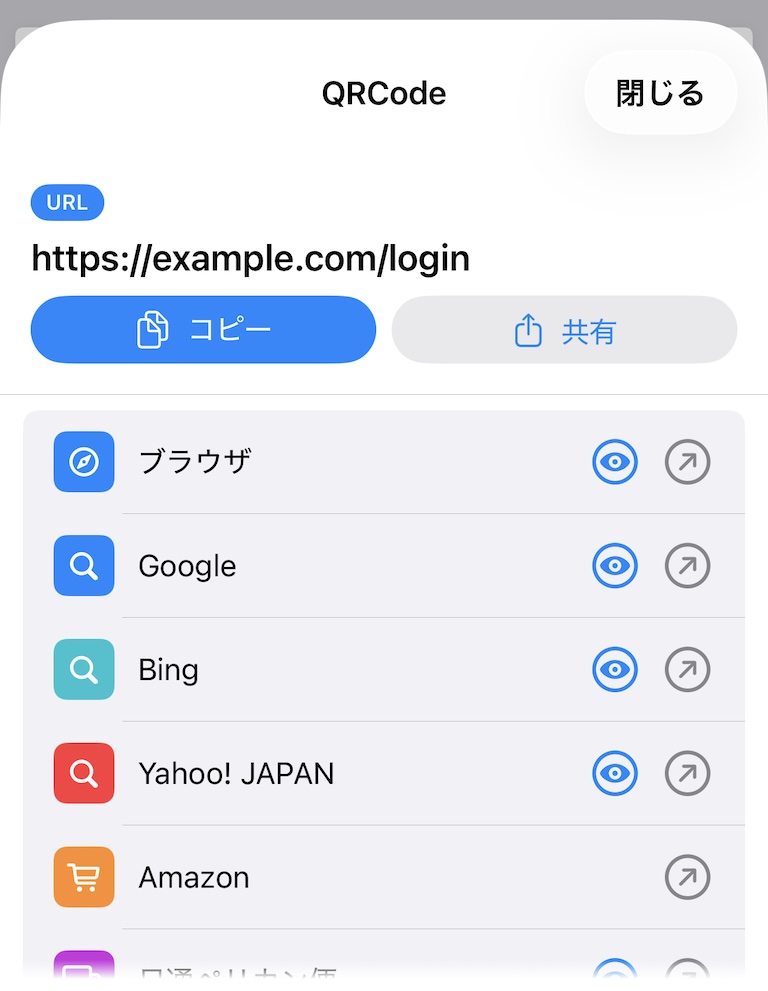 Detail screen
Keep It in History and Check Later
Barcode Reader X saves scan results in history. This is useful when you want to review a URL later or keep a record of the scan result.
Examples of QR Code Abuse
QR-code phishing is often called “quishing.” Reported examples include fake parking payment stickers, delivery notices, restaurant menus, and business document requests.
- Keepnet Labs: 10 Real-Life Quishing Attack Examples
- McAfee Blog: What Is Quishing? How QR Code Scams Work and How to Avoid Them
- Atomic Mail: Quishing Explained: The Modern QR Code Scam You Must Know
Learn more about Barcode Reader X
Related guides: